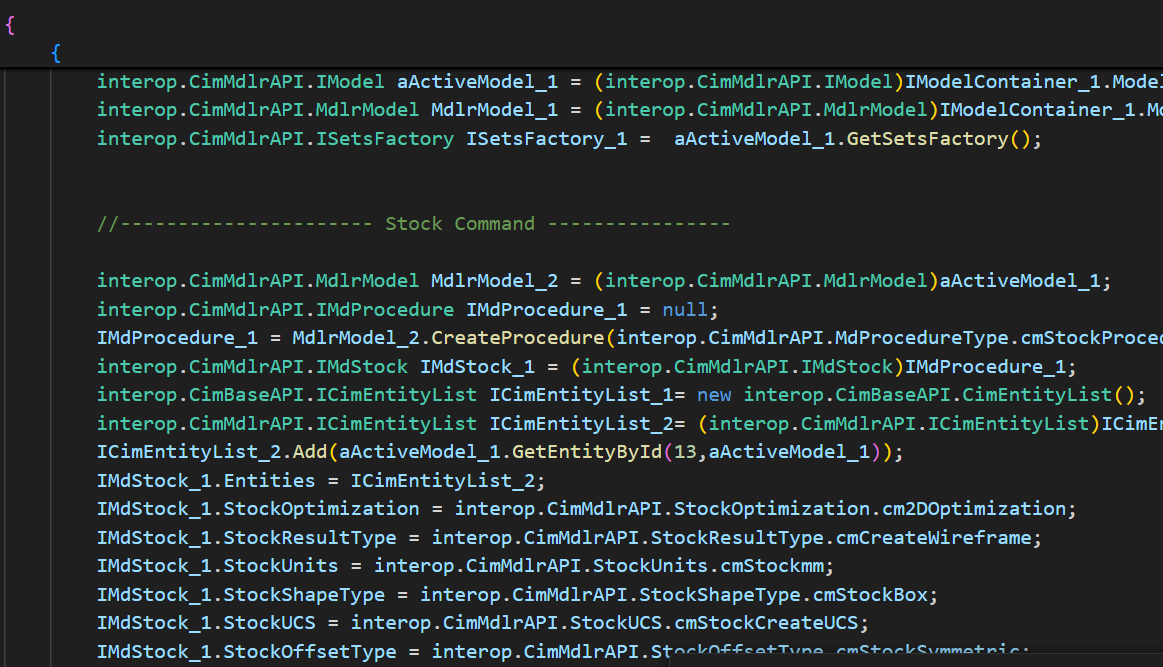
Journaling
This tool helps API developers create and understand Cimatron API code and the inputs required to execute features. Using this tool, C# or Python CimatronAPI code can be generated for actions executed on the Cimatron API.
The API code can then be complied directly using the Cimatron Visual Studio template inside the Visual Studio software.
The Journaling feature must be enabled before the command can be accessed.
Enable the Journaling Feature
- Open Cimatron Control Panel and click the API tab.
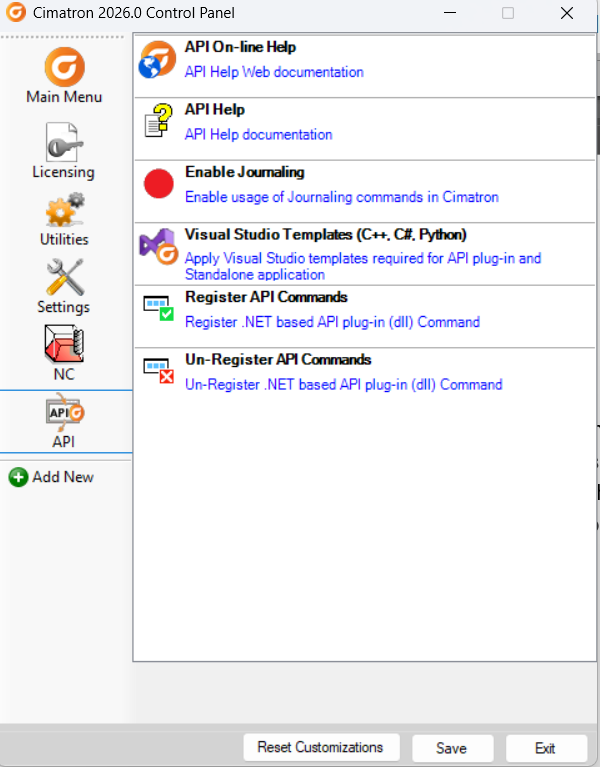
- Double-click Enable Journaling.
An alert is displayed, and the Enable Journaling item is highlighted. This command is now available in Cimatron. - To switch the Journaling feature off, double-click the highlighted Enable Journaling. The item has a white background when the Journaling feature is not enabled.
Using Journaling
- Launch Cimatron and open a Part document (This command is only supported in Part mode).
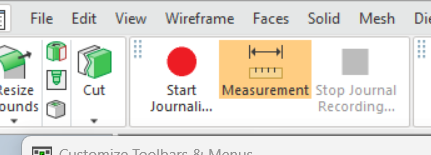
- Click Tools > Tools. The Start Journaling and Stop Journal Recording buttons are displayed―The Stop Journal Recording command is not available because journaling is not active.
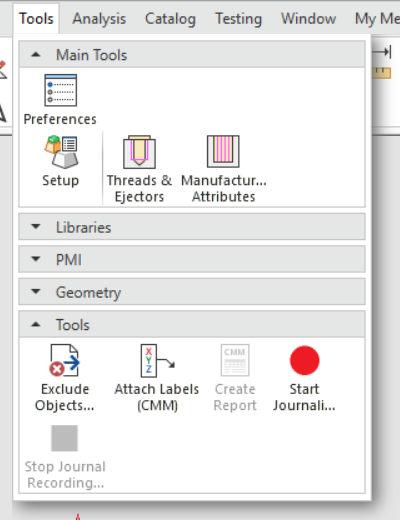
Note: If this command is not available, follow these steps
-
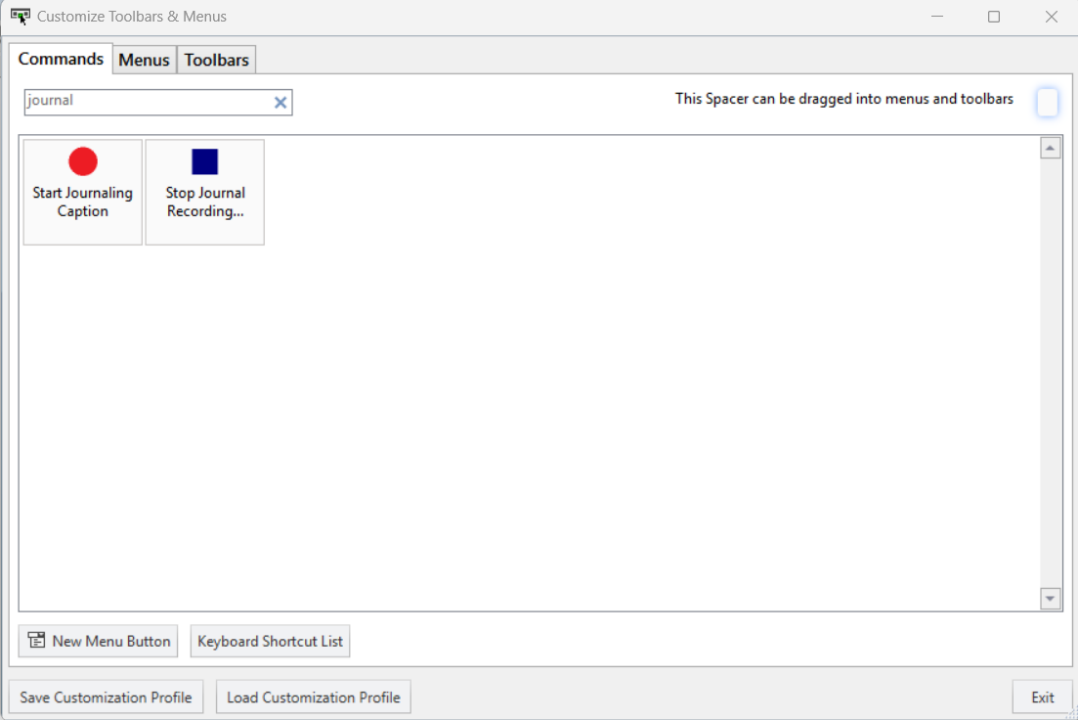
Click View Customize > Customize Toolbar.
-
Enter the keyword Journal in the search box.
-
Find Start Journaling and Stop Journal Recording in the results. Drag and drop these buttons onto any toolbar and close the dialog.
-
-
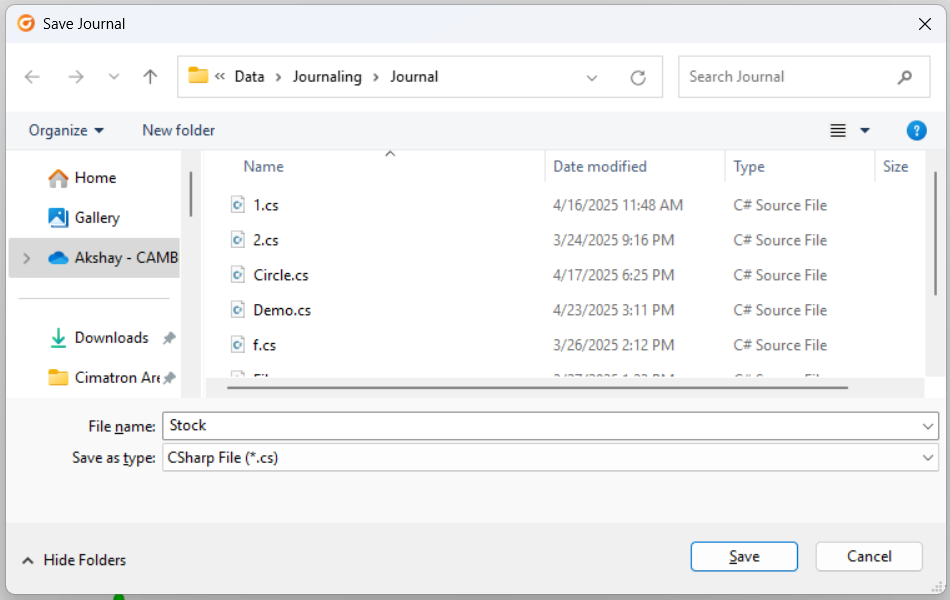
Click Start Journaling, then choose where the code file will be saved.
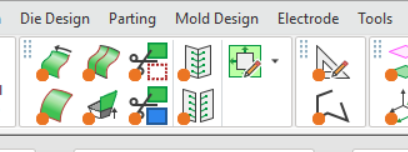
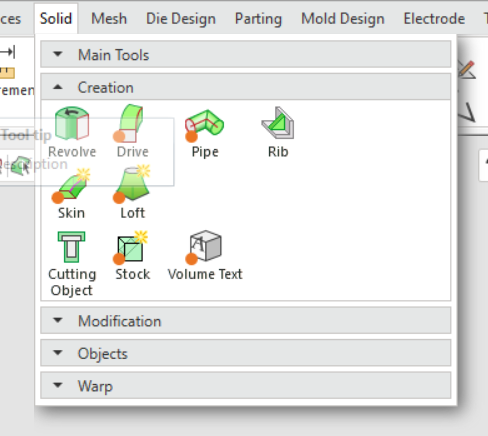
While Journaling is active, icons for all supported features display an orange indicator.
-
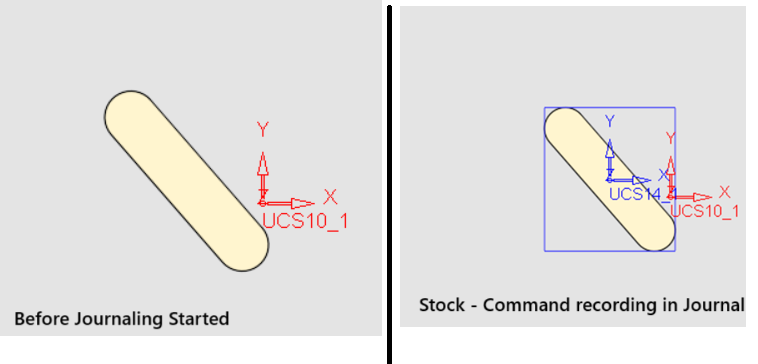
Execute any command, or sequence of commands, that you need to generate API code.
-
When complete, click Stop Journal Recording.
-
In Visual Studio, navigate to the location you selected for the journal code file and open this code.
It can be executed directly by creating a Visual Studio console project using the Cimatron Visual Studio template, and the recorded actions are then replicated in Cimatron.